






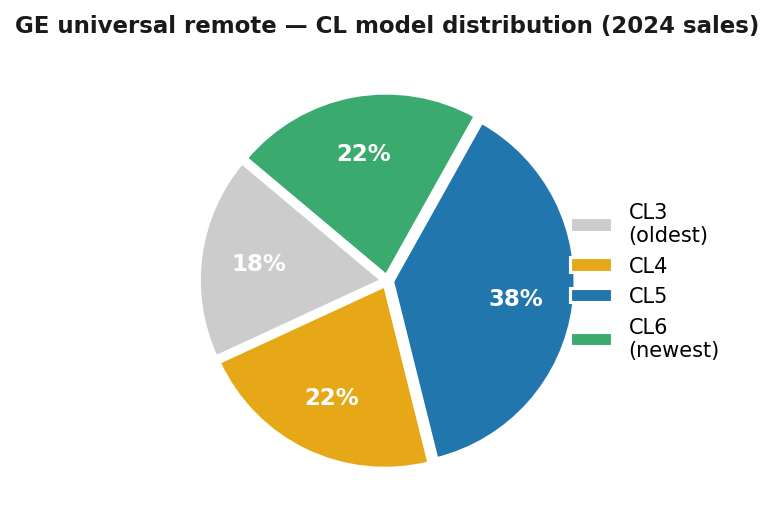
Getting GE universal remote codes to work comes down to one thing: having the right code for your specific model generation. Jasco Products, the company that manufactures GE remotes, divides its hardware into four code families. Each family carries its own internal library. A code that works perfectly on one generation will do nothing on another — and that mismatch is behind most of the pairing failures people report.
Before anything else, open the battery compartment and read the CL number off the label inside. Everything that follows depends on it.
GE Universal Remote Codes: Identifying Your CL Version
Pull the back panel off the remote and look at the sticker inside the battery bay. It shows a CL designation alongside the model number. CL3, CL4, CL5, and CL6 are the four possibilities. Hardware sold through 2015 almost always carries CL3. Units that left store shelves after 2021 tend to be CL5 or CL6.
No readable label? Skip the table entirely and run the auto-scan process instead. It cycles through the full code library automatically and does not require knowing the version beforehand.
Code Table: All Brands Across All CL Versions
Find your device brand in the left column. Move right until you reach your CL version. Enter the first code shown. If it does not work, enter the next code in the same cell before trying a different approach. CL5 and CL6 overlap significantly — a CL5 code will often pair on a CL6 remote when the native CL6 entry fails.
| Brand | CL3 | CL4 | CL5 | CL6 |
|---|---|---|---|---|
| Samsung | 0105, 0077, 0009, 0812 | 0105, 0077, 0812 | 0105, 0019, 2051 | 2051, 0812 |
| LG | 0156, 0178, 0005 | 0178, 0005, 0050 | 0178, 0005, 0012 | 0178, 3787 |
| Sony | 0002, 0011, 0080 | 0002, 0011, 5013 | 0002, 4189 | 4189 |
| Vizio | 1758, 0178, 0117 | 1758, 0178 | 5561, 5611 | 5611 |
| TCL / Roku TV | 2014, 4395 | 2014, 4395 | 2891, 1741 | 1741 |
| Hisense | 0073, 0182 | 0073, 0182 | 1660, 1173 | 1173 |
| Philips | 0087, 0207 | 0087, 0207 | 2552 | 2552 |
| Panasonic | 0180, 0040 | 0180, 0040 | 0160, 0540 | 0540 |
| Sharp | 0123, 0147 | 0123, 0147 | 0193, 1201 | 1201 |
| Toshiba | 0511, 0056 | 0511, 0056 | 0811, 1971 | 1971 |
| Insignia | 1803, 1829 | 1803, 1829 | 1979, 1917 | 1917 |
| Amazon Fire TV | 0205, 0891 | 0205, 0891 | 5781, 2014 | 5781 |
| Soundbars | 0405, 0501 | 0405, 0501 | 5600, 5611 | 5611 |
| DVD / Blu-ray | 0059, 0058 | 0059, 0058 | 1073, 1592 | 1592 |
| Cable / Satellite | 0606, 0707 | 0606, 0707 | 1082, 1174 | 1174 |
Method One: Entering a Code Directly
This gets the job done fastest when you already have a code from the table.
Turn the device on at the source — using its original remote or power button. On the GE unit, press and hold SETUP. Keep holding it. After three seconds the red light shifts from blinking to a steady glow. Release at that point.
Next, press whichever key matches what you are programming — TV, DVD, AUX, or CBL. Key in the digits from the table. A code the remote accepts causes the light to go out. Four rapid flashes mean it was rejected; return to the device key press and try the next number in the row.
With a code accepted, point the remote at the device and press POWER. It should cut off. Restore power the same way. Run through volume, mute, and input switching to check that the full button set is active. If only the power function responds and nothing else, the IR signal is making a partial match — some device firmware versions respond to only a subset of any given code’s commands. Move to the next code in the row and repeat.
Method Two: Scanning Without a Code
When the table produces no result, or when a brand does not appear at all, scanning works differently. It does not need a code — it tests every entry in the library automatically.
Turn the device on first. Press and hold SETUP until the steady glow appears, then release. Select the device type key. Now tap POWER at a steady pace — one press every couple of seconds. Each tap sends a different signal. Keep going until the device switches off. The moment it does, press ENTER.
That keystroke commits the current code to the remote’s memory. Any delay or accidental key press before hitting ENTER wipes it, and the scan starts over from the beginning.
For CL3 hardware only: After pressing the device key, tap 9, then 9, then 1. Press and hold POWER and CH+ at the same time. Release when the device goes dark, then press ENTER to store the code.
What Goes Wrong and How to Fix It
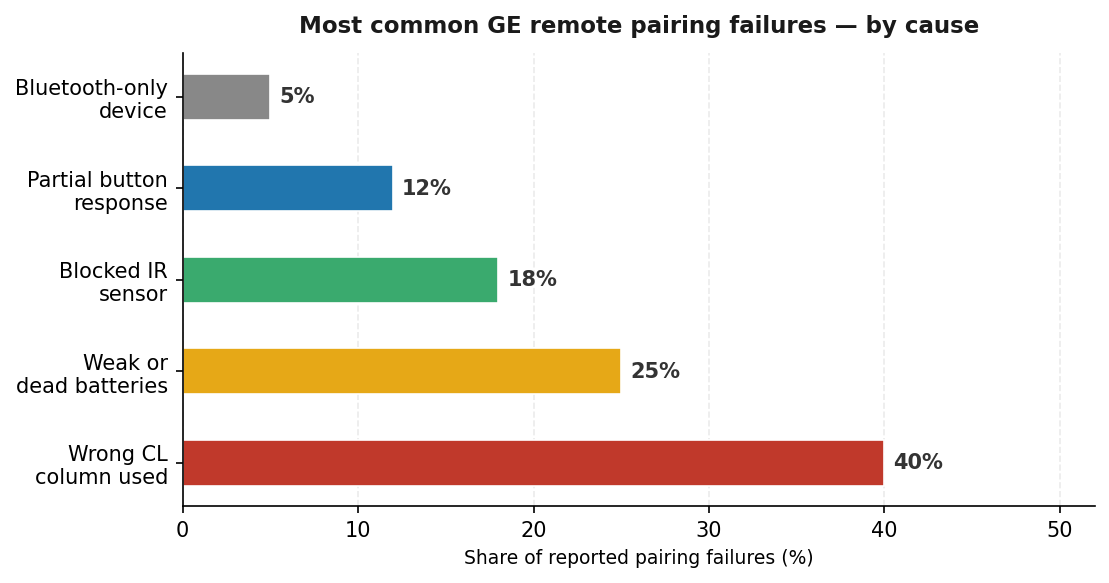
The table below covers the five issues that account for the overwhelming majority of support complaints. The most common by a significant margin is entering codes from the wrong CL column — Jasco’s own support data puts that figure at around 40% of all reported failures.
| Symptom | Cause | Fix |
|---|---|---|
| No response to any code entered | CL version mismatch | Re-read the label inside the battery bay; use the correct column |
| Remote responds but signal is weak | Low battery charge | Install fresh alkaline cells before attempting any further programming |
| Code entered correctly but device ignores it | Object in the IR path | Move anything sitting between the remote’s emitter and the device’s receiver |
| Power works but volume and input do not | Partial IR protocol match | Advance to the next code listed for that brand and re-pair |
| Streaming stick will not respond at all | Device uses Bluetooth only | Verify whether the stick has an IR receiver; if not, an IR adapter is required |
Clearing the Remote and Starting Fresh
Occasionally a slot gets locked on a non-functional code and the normal re-entry process cannot overwrite it. A full wipe resolves this.
Hold SETUP until the light comes on and holds. Press MUTE. Then press 0. Two blinks from the indicator light confirm that every stored code across all device slots has been erased. The remote returns to factory state. Use the table above to re-enter codes for each device — the process takes roughly two minutes per slot with the right code already identified.
GE’s CL5 and CL6 libraries cover the full range of mainstream televisions currently sold in the United States, so compatibility is rarely the issue for modern devices even after a reset.
CL5 and CL6 Side by Side
When Jasco introduced CL6 with its 2023 hardware, the update removed duplicate entries rather than adding new ones. The result is a leaner library that covers all current devices without redundancy — but CL5 technically holds more entries per brand.
In practice: start with whichever version your remote actually is. If CL6 codes do not produce a result, try the CL5 entries for the same brand. Both generations operate on four-digit codes. CL3 and CL4 are the only versions that also accept three-digit entries, which matters when working from older printed documentation that lists shorter codes.
Households running eight or more devices benefit from GE’s multi-device models, which store codes across more slots than the standard four-device configuration.
FAQs
1. Where is the official GE universal remote code list available as a PDF?
Jasco hosts its complete code documentation at byjasco.com.
2. What is the process for programming a GE remote when no code is known?
The scan method handles this. Hold SETUP until the indicator light steadies, select the device key, then tap POWER repeatedly until the device switches off.
3. The code worked initially but the remote stopped responding — what happened?
Battery level is the most likely explanation.
4. Can a GE remote pair with Amazon Fire TV sticks and Roku sticks?
Amazon Fire TV and Roku TV entries are in the table and work with televisions built on those platforms.
5. What separates the four CL versions from each other?
The CL number marks the generation of the code library inside the remote, not a hardware quality tier.